

(Last Updated 3/4/26)
Currently PromoTix supports Stripe, PayPal, and Authorize.net for credit card processing. In order to sell paid tickets on PromoTix, you will need to connect at least one payment processor to your events. All revenue from ticket sales will be deposited directly into your chosen payment processing account.
For the latest information on Authorize.net's platform, payout schedules, and associated fees, please visit their website here.
NOTE: a PromoTix enterprise package is required in order to use Authorize.net with PromoTix.
NOTE: the following currencies are supported by both Authorize.net and PromoTix: USD, CAD, AUD, EUR, GBP, NZD, DKK, NOK, ZAR, and SEK.
NOTE: currently no credit card terminal is supported by both Authorize.net and PromoTix (only "card not present" transactions are currently supported).
1. Sign up for an Authorize.net account
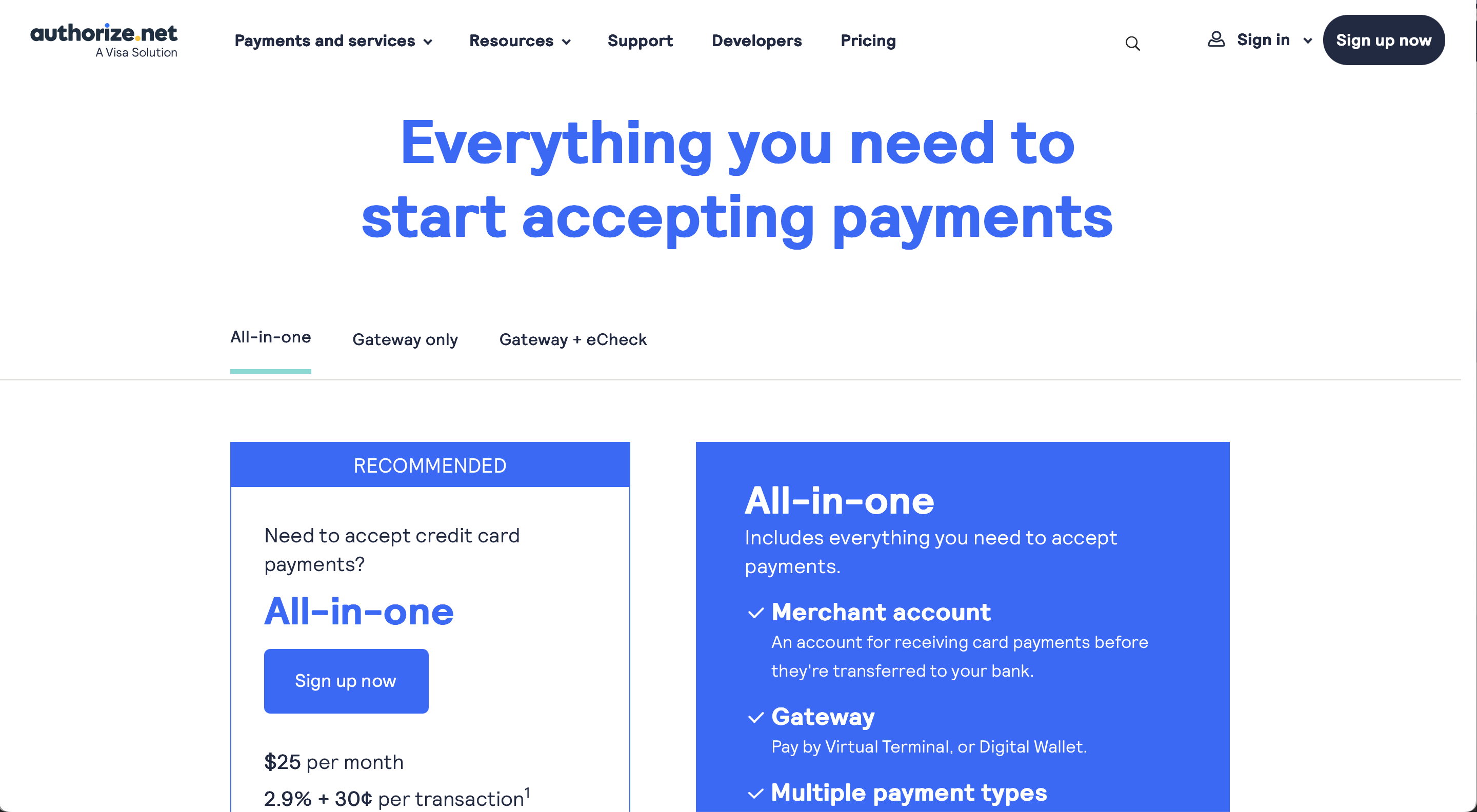
NOTE: if you already have an Authorize.net account, you can proceed to step #2.
Click here to sign up for an Authorize.net account: https://www.authorize.net/sign-up/pricing.html
When signing up for an Authorize.net account, there are three different account type options:
-
All-in-one 👉 select this option if you do not already have a merchant account
-
Gateway only 👉 select this option if you already have a merchant account that you would like to use with PromoTix
-
Gateway + eCheck 👉 select this option if you already have a merchant account that you would like to use with PromoTix, and you would like to start processing eChecks
2. Navigate to "Account" 👉 "Account and API Settings"
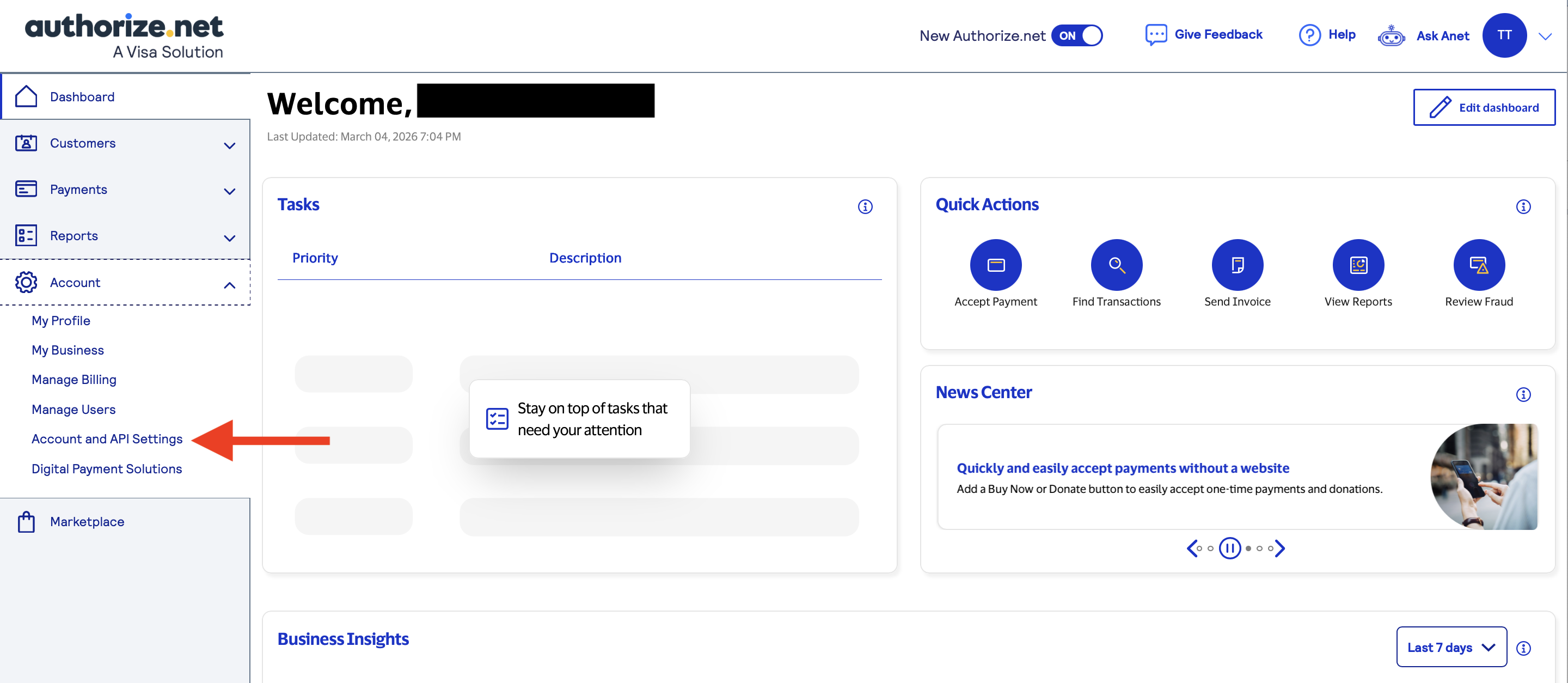 Once your Authorize.net account is fully setup (with your own merchant account connected if using the "Gateway only" or "Gateway + eCheck" account types), click on Account 👉 Account and API Settings.
3. Click on "Advanced Fraud Detection Suite Settings"
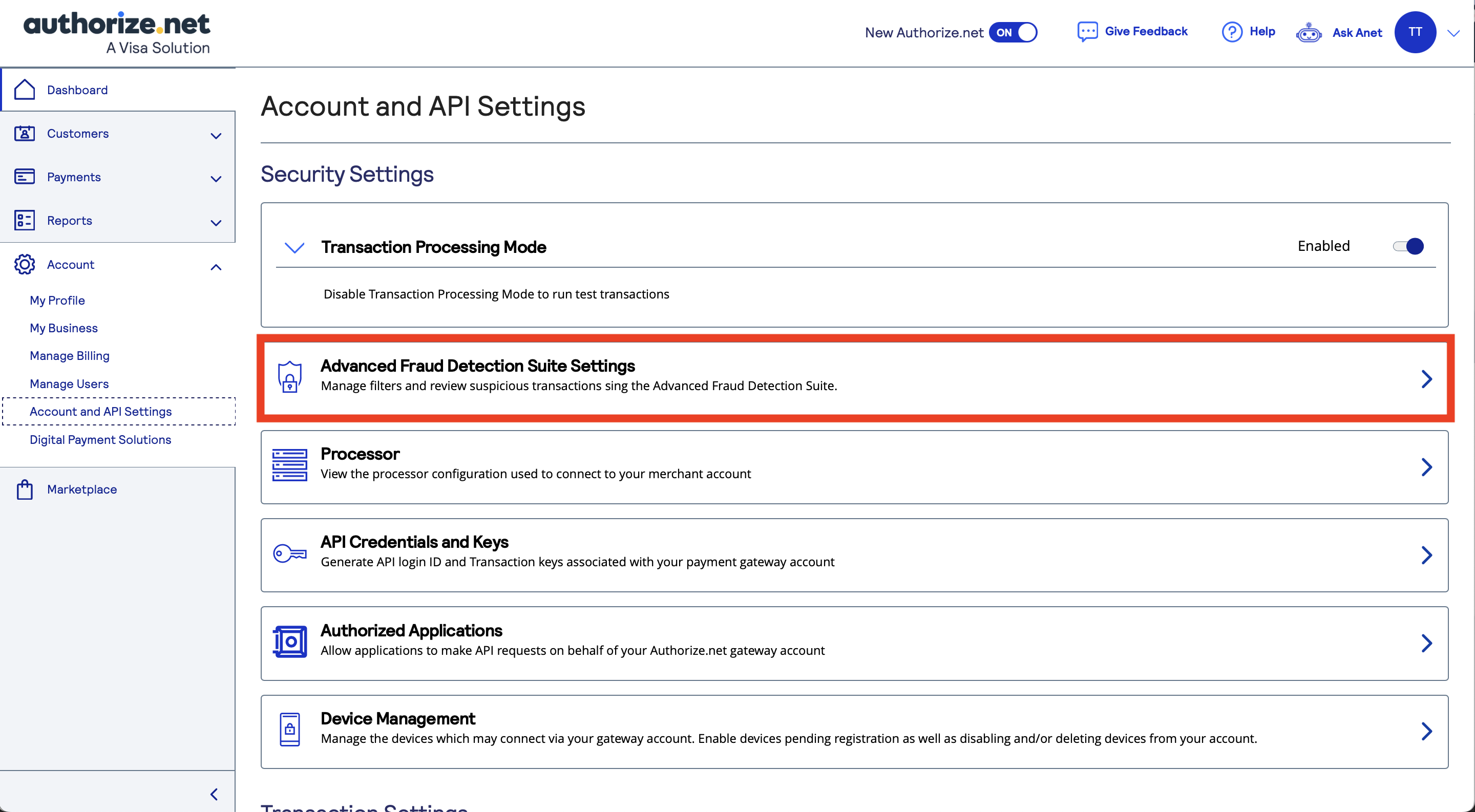 IMPORTANT: before using Authorize.net with PromoTix, it is very important to double check your fraud settings to ensure that you do not experience any issues using Authorize.net with PromoTix later on.
Click on Advanced Fraud Detection Suite Settings.
4. Review all of your fraud setting configurations, and adjust wherever necessary
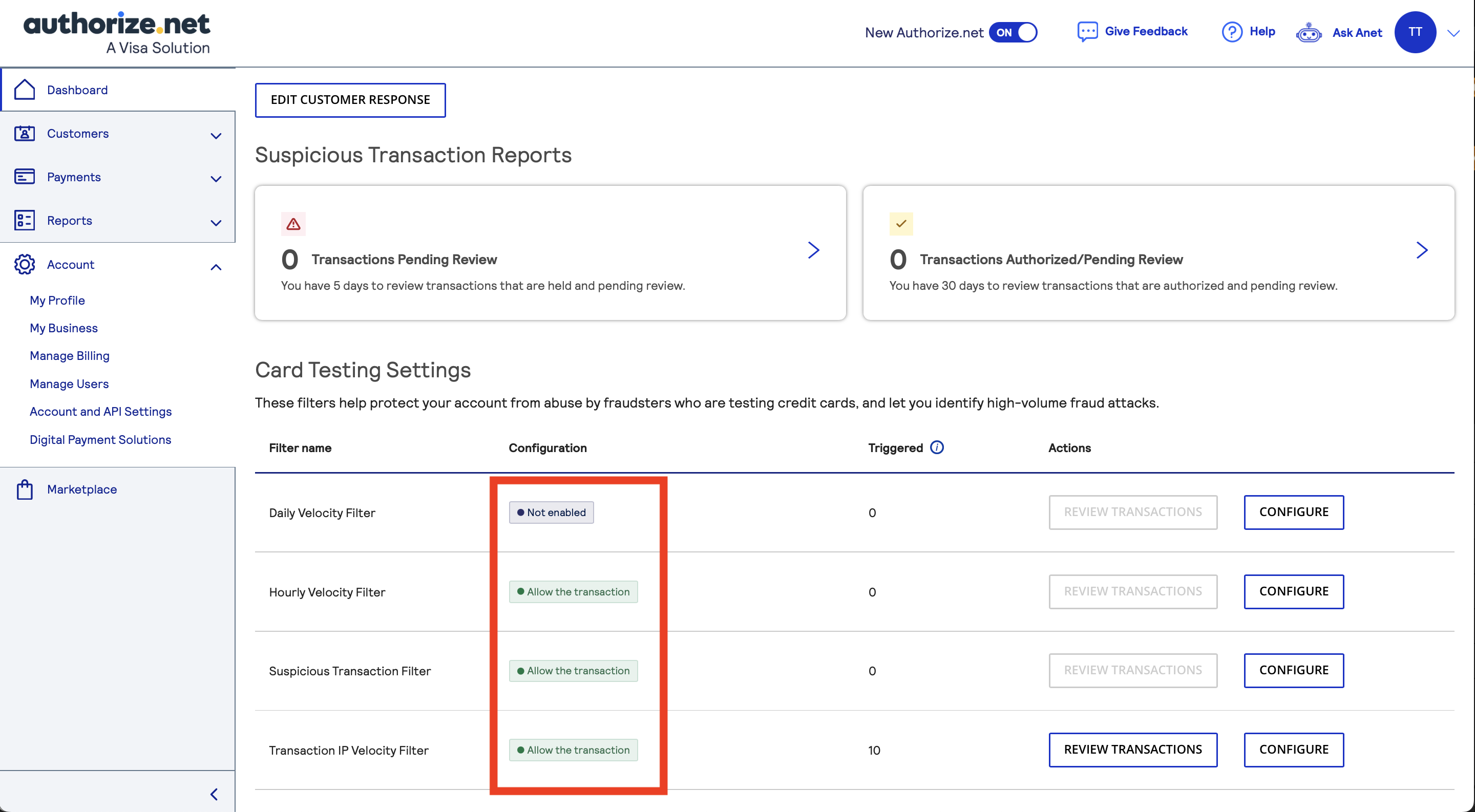
Each Authorize.net account has customizable settings for detecting suspicious transactions. These settings also dictate how you would like Authorize.net to respond to a suspicious transaction when it does detect one.
When a suspicious transaction is detected, here are all of the ways you can have your Authorize.net account handle them:
-
Report Suspicious Transaction, but Approve 👉 when Authorize.net detects a suspicious transaction you will be notified, but the transaction will still be approved. A PromoTix order will be created immediately upon purchase, and the customer will also be sent their tickets immediately (Recommended for almost all fraud settings)
-
Authorize and Hold for Review 👉 when Authorize.net detects a suspicious transaction, the card will be “authorized" (meaning the card number, expiration date, and CVV will all be verified), however you will need to manually review and approve these transactions within the expiration window in order to capture them. If the expiration window lapses, then you will no longer be able to capture these payments. A PromoTix order will be created immediately upon purchase, and the customer will also be sent their tickets immediately (Not recommended for any fraud settings)
-
WARNING: even though the card has already been authorized, you could still experience issues later when attempting to capture these payments (ex. “insufficient funds” or “frozen or replaced card”). This means your customers could receive tickets without you receiving payment.
-
- Do Not Authorize, and Hold for Review 👉 when Authorize.net detects a suspicious transaction, the card will not be "authorized," and you you will also need to manually review and approve these transactions within the expiration window in order to capture them. If the expiration window lapses, then you will no longer be able to capture these payments. A PromoTix order will be created immediately upon purchase, and the customer will also be sent their tickets immediately (Not recommended for any fraud settings)
- WARNING: this option poses the most risk for issues happening later when attempting to capture these payments. In addition to the previously mentioned errors (“insufficient funds” and “frozen or replaced card”), you could also experience other errors due to these cards not being authorized. For this reason, we recommend not configuring any of your Authorize.net fraud settings to this particular setting when using with PromoTix.
- Decline 👉 decline the suspicious transaction. A PromoTix order will not be created, and the customer will need to reattempt their purchase (Recommended for some fraud settings)
IMPORTANT: if you decide to configure any of your fraud settings to "Authorize and Hold for Review" or "Do Not Authorize, and Hold for Review" (against our recommendations), make sure that your suspicious transaction email notifications are turned on in Authorize.net. All suspicious transactions flagged for review will need to be manually approved, and once the expiration window lapses, you will be unable to capture those payments anymore. So for that reason, it is important that you have email notifications turned on anytime your Authorize.net account flags a suspicious transaction:
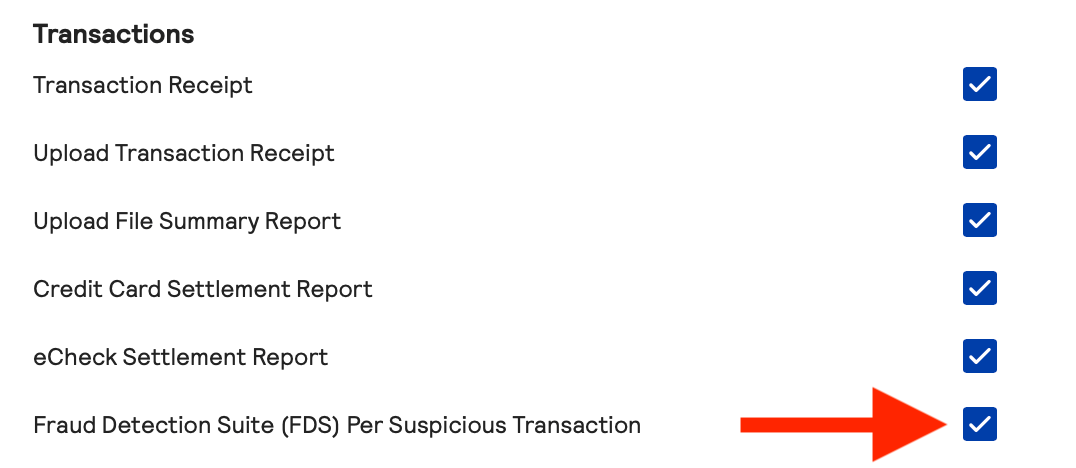
Once you have reviewed (and updated wherever necessary) all of your fraud settings, navigate back to Account 👉 Account and API Settings.
5. Click on "API Credentials and Keys"
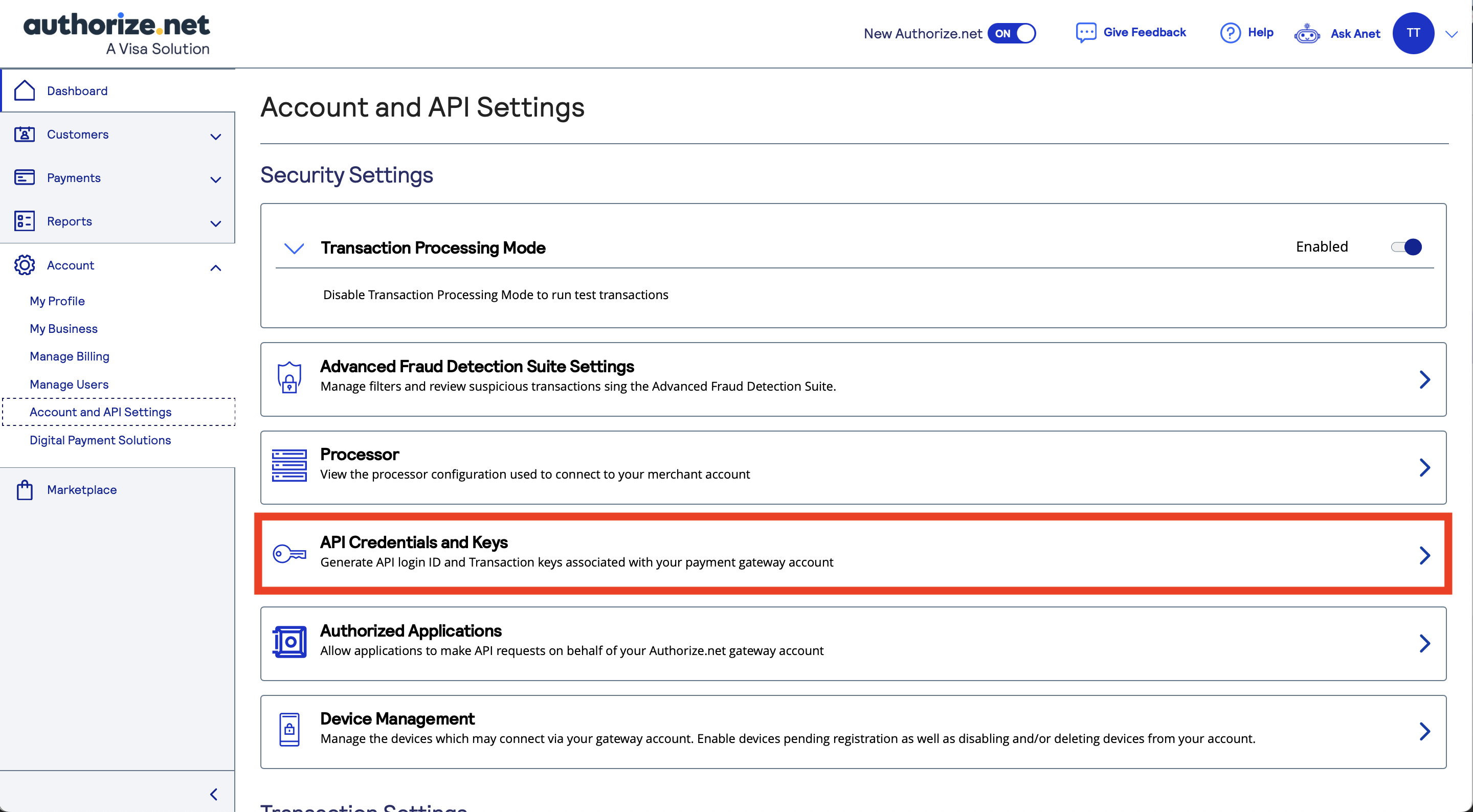 Click on API Credentials and Keys.
6. Copy down your "API Login ID" and "Transaction Key"
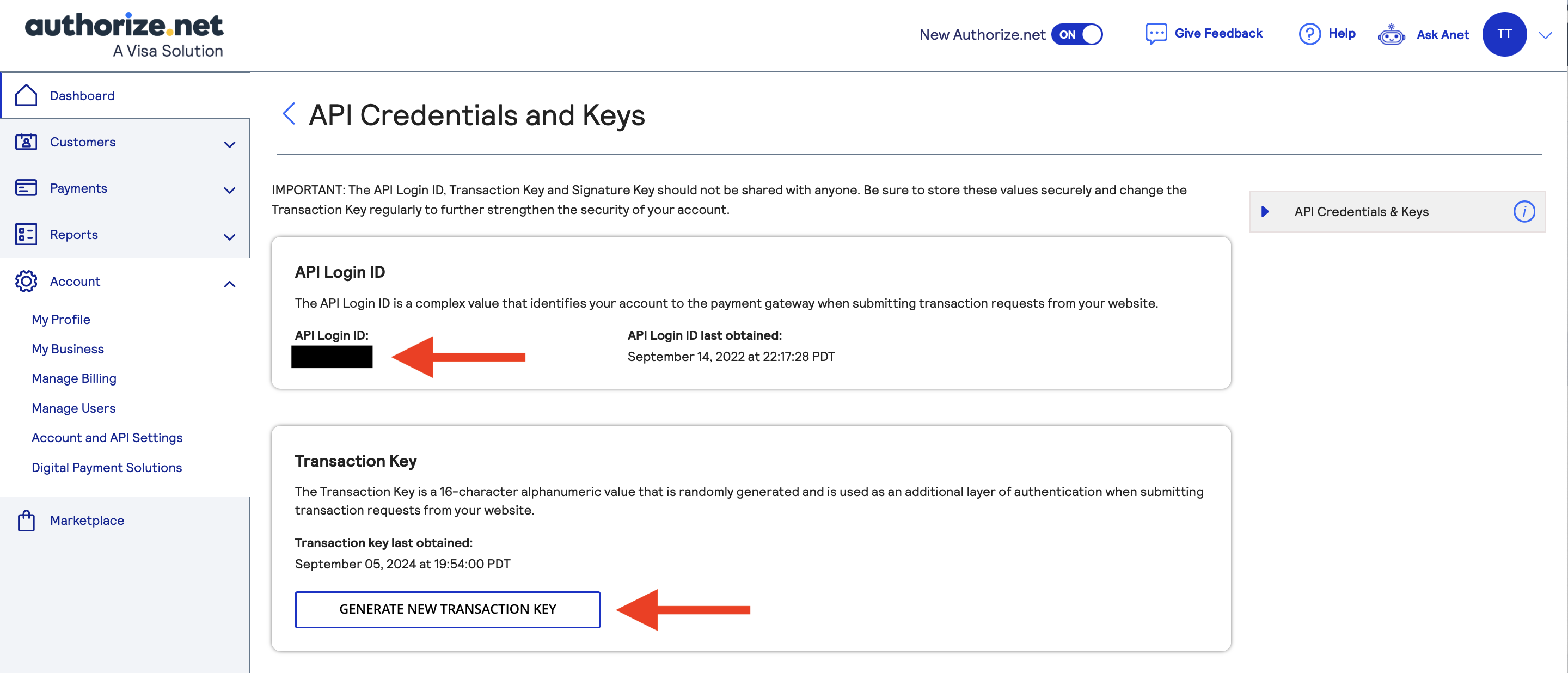 Copy down your API Login ID and Transaction Key for use later.
CAUTION: if you are already using your transaction key with a different application and need to generate a new one, please be aware that your old transaction key will expire in 24 hours upon creation of a new key.
7. When setting up your PromoTix event, click on the Authorize.net button
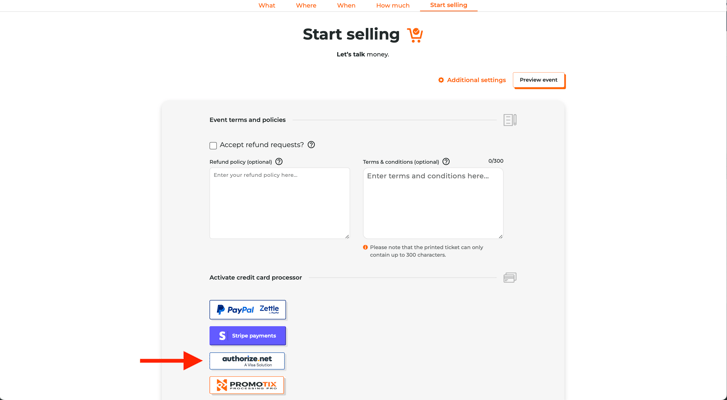 On the very last step when creating your PromoTix event, you will see an Authorize.net button. Click this button to connect your existing Authorize.net account to your PromoTix event.
If you are editing an existing PromoTix event, you can find this button on the Payment tab in the drawer on the left side of the screen:
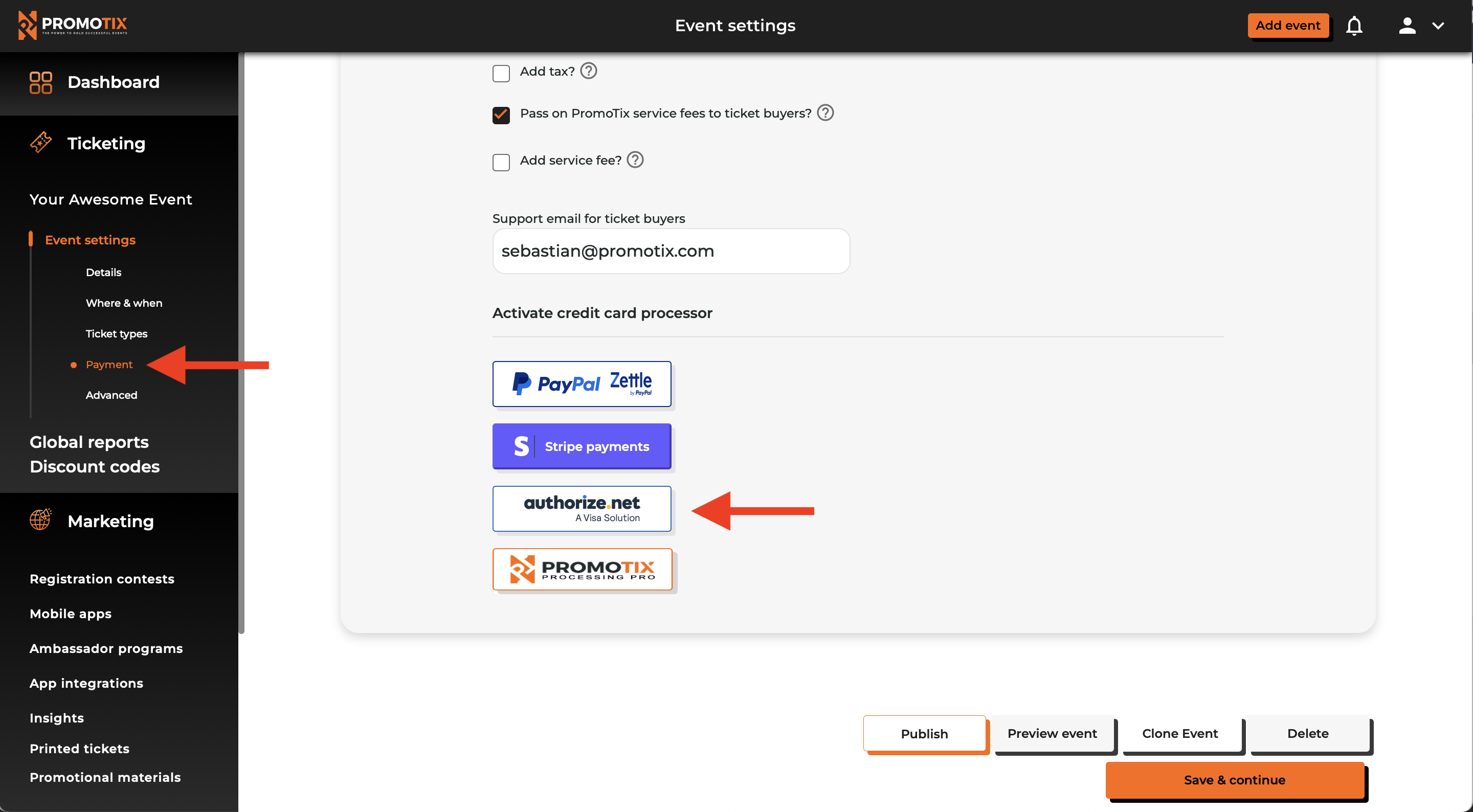
Click on the Authorize.net button to begin connecting your Authorize.net account to your PromoTix event.
NOTE: if you are unable to click this button, your PromoTix account may not currently be eligible to use Authorize.net. Contact our customer support team here for assistance.
8. Enter in your API Login ID and Transaction Key from Authorize.net
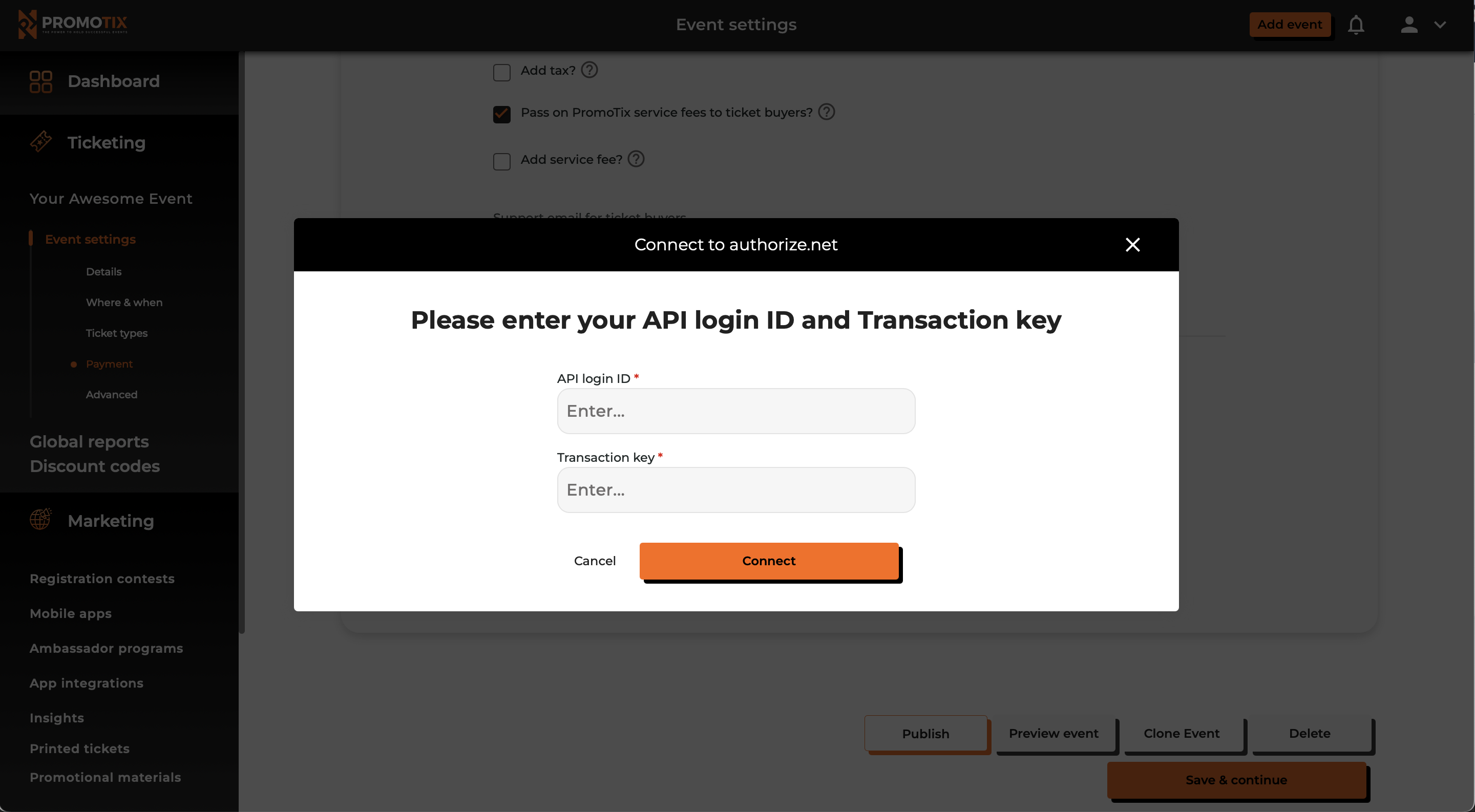 Enter in your API Login ID and Transaction Key from your Authorize.net account into the appropriate fields.
Click on the Connect button.
9. Verify your Authorize.net connection
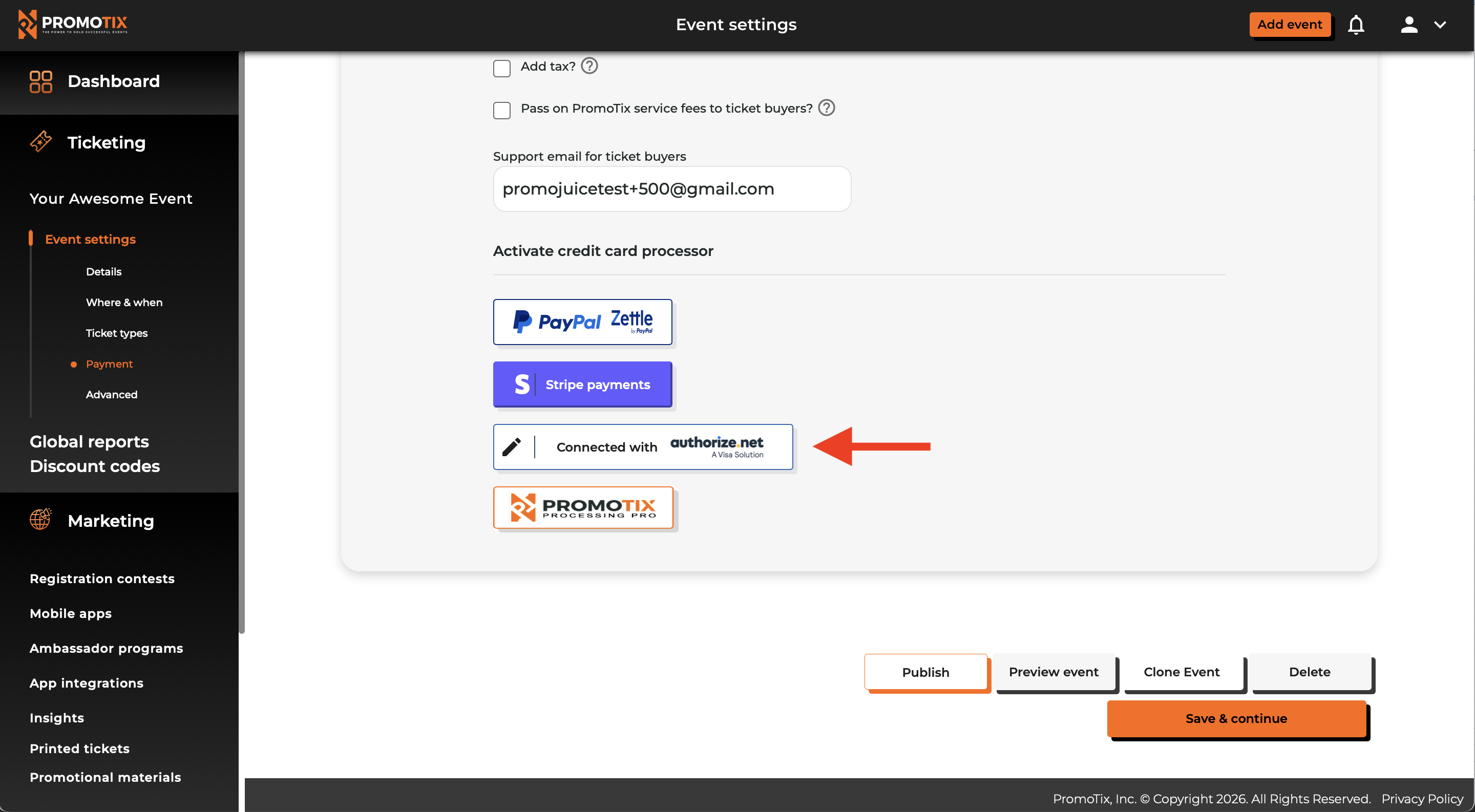 To verify that your Authorize.net account has been connected successfully, check to see if the Authorize.net button has been changed to "Connected with Authorize.net." If so, this means that your Authorize.net account has been successfully connected to your event. You are all set!
TIP: you can change the Authorize.net account connected to your events at any time by clicking on the small pencil icon.
TIP: to avoid having to reconnect your Authorize.net account every time you create a new event, clone a pre-existing event that already has your Authorize.net account connected.
Still Have Questions?