

(Last Updated 11/3/26)
While Stripe offers a more affordable device to swipe, insert, and tap cards (the Stripe Reader M2), the Stripe Reader S710 has additional features that may be important to you, such as:
- No separate device or Bluetooth connection needed: the Stripe S710 is its own touchscreen device with a 5.5-inch display
- You can use the PromoTix Organizer mobile app directly on the Stripe S710
- The Stripe S710 connects over WiFi, cellular, or ethernet through the Stripe Reader Hub
Notes:
-
The Stripe S710 can only be used if you have Stripe activated on PromoTix to process payments
-
The Stripe S710 can be used with PromoTix to both sell and check in tickets, however since the Stripe S710 does not include a built-in camera, the the scanning feature is not supported (only manual check in / check out via attendee lookup is supported)
-
In addition to the convenience of using this credit card terminal, Stripe offers discounted payment processing rates on all sales made using it. Please see here for details.
IMPORTANT: USD is the only currency currently supported by both the Stripe S710 and PromoTix
IMPORTANT: in order to use the PromoTix Organizer mobile app on the Stripe S710, your Stripe account must be configured to be "controlled by a single platform." Please keep reading for more information
1. Confirm your Stripe account is eligible to use the Stripe S710 with PromoTix
Before you can use the Stripe S710 with PromoTix, your Stripe account must first be configured to be "controlled by a single platform:"
- When a Stripe account is configured to be "controlled by a single platform," it can only be connected to and used with a single third party platform (like PromoTix)
- Once a Stripe account has been configured in this way, that Stripe account can no longer integrate with any other third party platforms (besides the single platform that its currently controlled by)
- Note: this restriction is enforced by Stripe directly, and only applies to Stripe's all-in-one credit card terminals (such as the Stripe S710)
So before ordering a Stripe S710 to use with PromoTix, it's important to first consider how you are currently using your Stripe account:
-
If you only use your Stripe account with PromoTix 👉
- And if you are comfortable with the implications above, you can contact Stripe support and ask them to configure your Stripe account to be "controlled by a single platform," with PromoTix as the chosen platform
- And if you are comfortable with the implications above, you can contact Stripe support and ask them to configure your Stripe account to be "controlled by a single platform," with PromoTix as the chosen platform
- If you use your Stripe account with PromoTix and other platforms 👉
- And if you are comfortable disconnecting all other platforms besides PromoTix from your Stripe account, you can contact Stripe support and ask them to configure your Stripe account to be "controlled by a single platform," with PromoTix as the chosen platform
- If you are not comfortable disconnecting all other platforms besides PromoTix from your Stripe account, you can also:
- Sign up for a new Stripe account
- Contact Stripe support and ask them to configure your new Stripe account to be "controlled by a single platform," with PromoTix as the chosen platform
- Confirm that your new Stripe account is connected to all of your upcoming PromoTix events by following these instructions here
- And if you are comfortable disconnecting all other platforms besides PromoTix from your Stripe account, you can contact Stripe support and ask them to configure your Stripe account to be "controlled by a single platform," with PromoTix as the chosen platform
- If you are unsure 👉
- You can contact Stripe support and ask them to confirm if your Stripe account is currently "controlled by a single platform"
NOTE: if asked for PromoTix's platform Stripe account ID, you can provide Stripe support with the following: "acct_************upGG"
2. Purchase a Stripe Reader S710 from Stripe
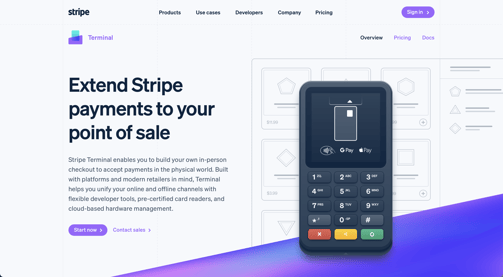
If you don't already own a Stripe Reader S710, visit this URL to purchase one off of Stripe's website.
IMPORTANT: do not source a Stripe Reader S710 from anywhere other than Stripe's website. Doing so may result in the Stripe Reader S710 not being compatible with PromoTix
3. Turn on your Stripe Reader S710
-
Power on your S710 reader
-
Connect the reader to Wi-Fi or another supported internet connection
-
Allow the reader to complete any required software updates
-
Keep the reader powered on and connected to the internet
For additional help setting up your Stripe S710, see Stripe's instructions here.
4. Using a separate device, open Stripe Terminal in your Stripe Dashboard
-
Using a computer or other device, visit the Stripe Terminal Dashboard.
-
Sign in to the eligible Stripe account that you would like to use with PromoTix
-
Navigate to Terminal → Readers.
5. In Stripe Terminal, create or select a location
Stripe requires each S710 device to be associated with a Terminal Location in your Stripe account:
-
Navigate to Terminal → Locations.
-
Select an existing location, or click Create location.
-
If creating a location, enter a recognizable name and the physical address where you will be accepting payments.
-
Save the location.
NOTE: if you already have a location saved for your venue or business, you generally do not need to create another one.
For additional help managing locations in your Stripe account, see Stripe's instructions here.
6. In Stripe Terminal, register your S710 reader
-
Return to Terminal → Readers in your Stripe Dashboard.
-
Click Register reader.
-
Select the location where the reader will be used.
-
On your S710 device, access the reader's settings and locate the option to generate or display its registration code.
-
In Stripe Terminal, enter the registration code from your S710 device
-
Give your reader a recognizable name, and then confirm registration.
7. In Stripe Terminal, verify registration
-
Return to the Stripe Terminal Dashboard and confirm that your S710 device appears under the correct location.
-
Once it has connected successfully, it should report an online status.
8. Install the PromoTix Organizer mobile app
Unfortunately there is no public app store available for downloading third party apps on the S710, so in order to install the PromoTix Organizer mobile app on your S710 device:
-
Contact PromoTix Support mentioning that you would like to use the PromoTix Organizer mobile app on your Stripe S710 device(s)
- Please include all Stripe Location ID's that your Stripe S710 devices are registered under. Stripe location ID's follow the format "tml_**************"
- Once your request has been processed, the PromoTix Organizer mobile app will be installed automatically the next time your S710 device(s) are powered on
NOTE: any future updates released for the PromoTix Organizer mobile app will be installed automatically the next time your S710 device(s) are powered on.
9. (Optional) activate a cellular network on the S710
While the Stripe S710 supports WiFi connectivity natively, you can also activate a cellular network for an additional monthly subscription cost (paid to Stripe):
-
Using a computer or other device, visit the Stripe Terminal Dashboard.
- Navigate to Terminal → Readers.
- Select a registered S710 reader.
- Look for a cellular connectivity or subscription management option.
- If available, follow the prompts to activate the monthly cellular plan.
Notes:
-
Stripe provides the cellular service through its network partner (no separate carrier required)
-
The Stripe S710 can switch between supported cellular networks depending on coverage
-
Stripe limits PromoTix Organizer mobile app usage to 10 GB per reader per month
10. Once installed, login to the PromoTix Organizer mobile app
 Once the mobile app has finished downloading, it will be launched automatically whenever your S710 device is powered on.
11. Once logged in, tap on the "Box office" option located in the bottom right
 Tap on the "Box office" option.
12. Select the event you would like to sell tickets for
 If you have multiple live events, tap on the specific event that you would like to sell tickets for.
To access your recurring events, tap on the Recurring event(s) tab located at the top of the screen.
13. Tap on the "Sell tickets" tab, and then continue through the checkout process
 The "Sell tickets" tab should be selected by default. Add item(s) to the shopping cart, and then follow the steps through the checkout process.
IMPORTANT: if your customer would like to be sent a copy of their receipt via email, simply collect their email address on the following screen.
14. On the "Payment" step, tap on the "Read card" icon

Tap on the "Read card" icon to accept a payment using the Stripe S710.
15. Tap, insert, or swipe a card
A message will appear confirming that the Stripe S710 is ready to accept a card.
Once the payment has been processed successfully, you will be automatically redirected back to the PromoTix Organizer mobile app.
16. Decide if all items on the order should be checked in or not
 Once the payment has been processed successfully, a message will appear asking you to decide if all of the items on the order should be checked in or not:
- If the customer is redeeming all of the items on their order right now 👉 Tap on "Yes" to automatically mark all of the items on the order as "checked in"
- If the customer will be redeeming some or all of the items on their order at a later point 👉 Tap on "No" to leave all of the items on the order "checked out"
17. Tap on "Back to sell tickets" to begin a new order

Tap on the "Back to sell tickets" button to begin a new order.